
Image to SVG user guide
Browse the user guide, Chrome extension help and FAQ for uploads, SVG/PDF/DXF downloads, path editing and installation. Search across categories and click screenshots to enlarge.
User guide
01 Registration and Login
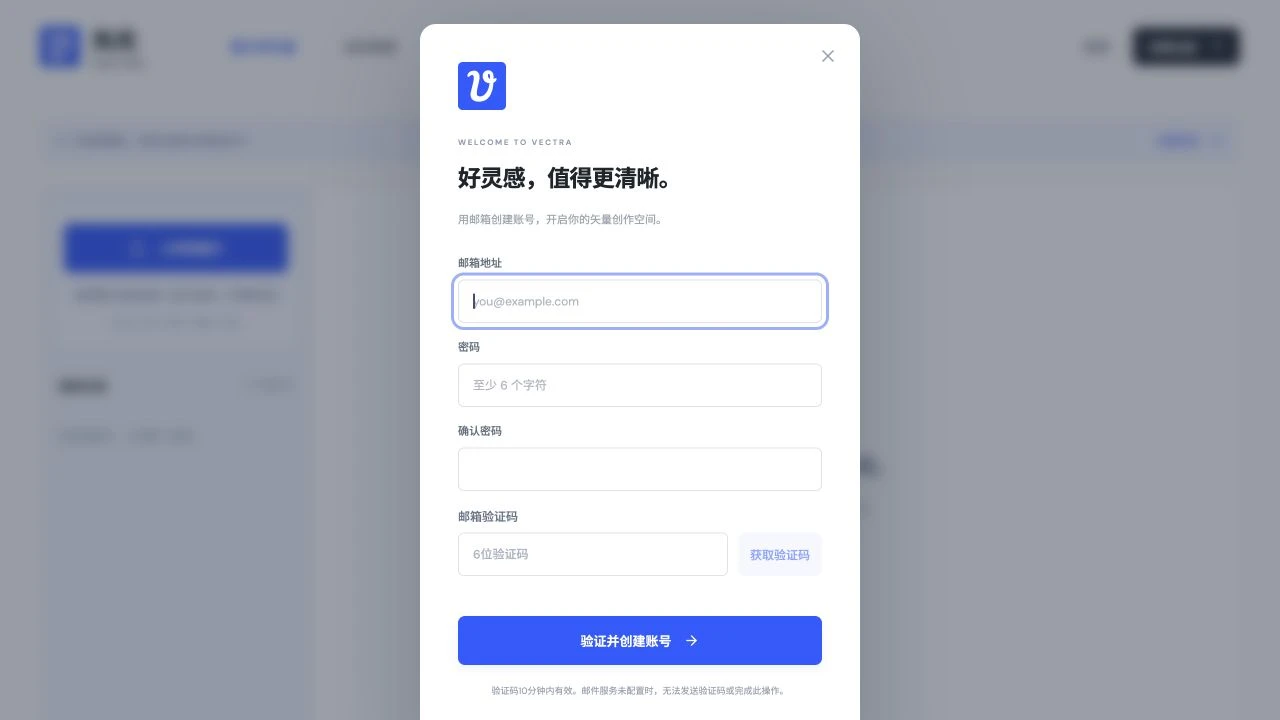
Click "Register for Free" or "Log In". You can use your mobile phone to log in with a verification code. If you have not registered a mobile phone number, an account will be automatically created after verification. Email registration requires a password and email verification code. Old email users can bind their mobile phone number in "Account Security" and retain their original membership and orders. If the sending fails, follow the page prompts.
02 Redeem membership
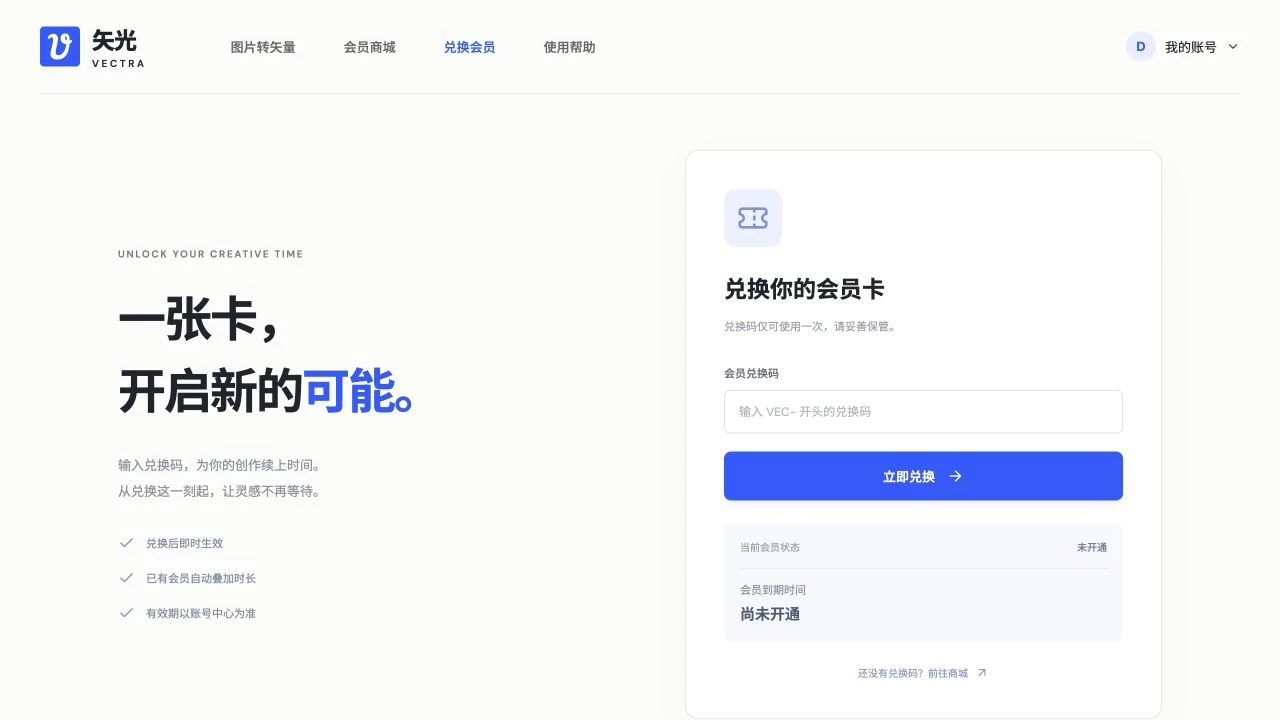
Enter "Redeem Membership", enter the redemption code and confirm. After the redemption is successful, you can submit the conversion. When an existing valid member renews, the duration will be added. Membership packages and purchase methods are subject to the mall instructions. Website membership and independent API balances are calculated separately.
03 Upload pictures
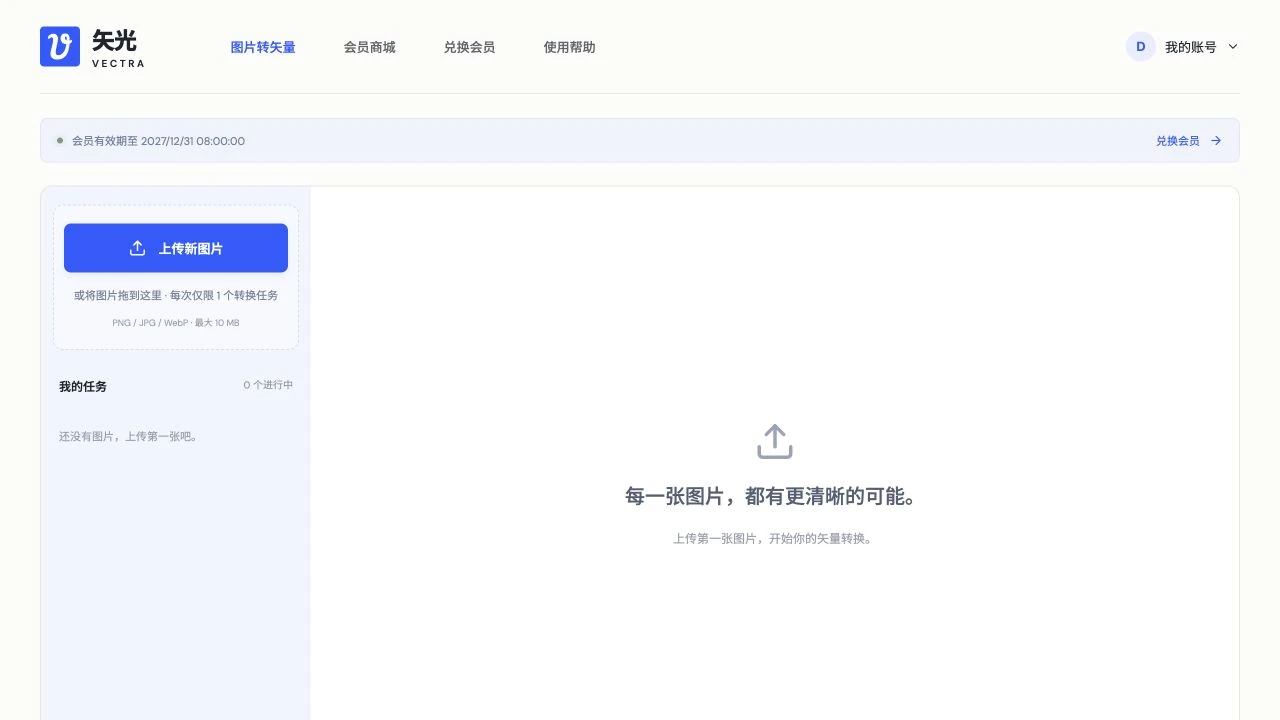
Enter "Image to Vector", click "Upload New Image" or drag in the image. Supports PNG, JPG, WebP, up to 10 MB; scales proportionally according to 3 Mi pixel budget and longest side 4096 pixel limit, without enlarging small images. At most 1 conversion task for the same account has not been completed. The next one will be uploaded after success or failure.
04 Preview and Download
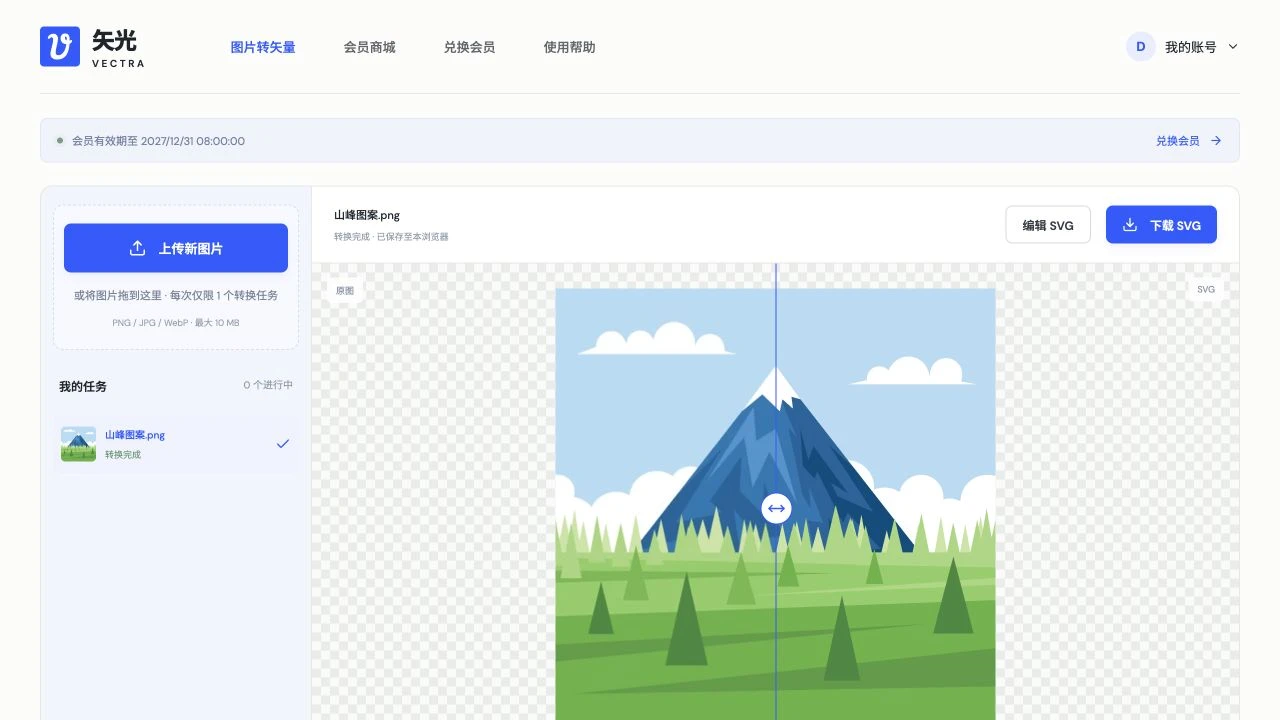
After the conversion is completed, select the task and compare the original image with the SVG. Open "Download vector image" and select SVG, PDF or available DXF; the button will be grayed out if the old task does not have a DXF attachment. DXF is the original outline, which is output at 96 px = 25.4 mm by default. Check the size and closure before use. Click "Edit" to continue making adjustments.
05 Area Editing, Color and Smart Tools
The sidebar is "Show Comparison", "Show Path", "Region Edit", "Smart Background Removal" and "Smart Merge Similar Colors". Area editing modifies the color of the selected path, removes the fill, or deletes the path; color deletion on the right affects all areas of the same color. Intelligent background removal is based on the original conversion results; merging similar colors can be previewed, applied after confirmation, and all can be undone.
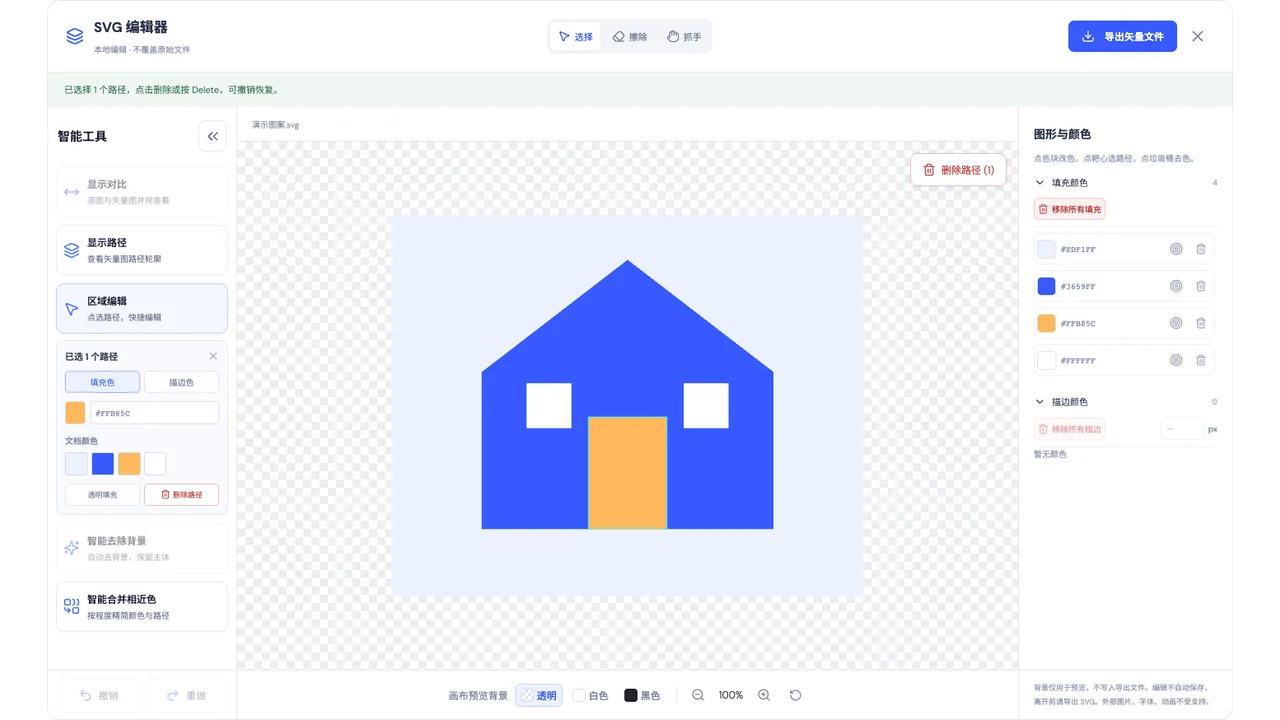
06 Frame selection, erasure and stroke removal
Use "Select" to click or box-select the complete path, and drag from a blank space on the canvas outside the file boundary. Shift adds a box selection, Cmd or Alt uses a box selection to subtract a selection; Delete deletes the selected path. "Erase" suspends the preview path. The tip of the eraser is the click position. Click to remove the fill and retain the stroke. "Remove All Strokes" clears the strokes and can be undone by mistake.
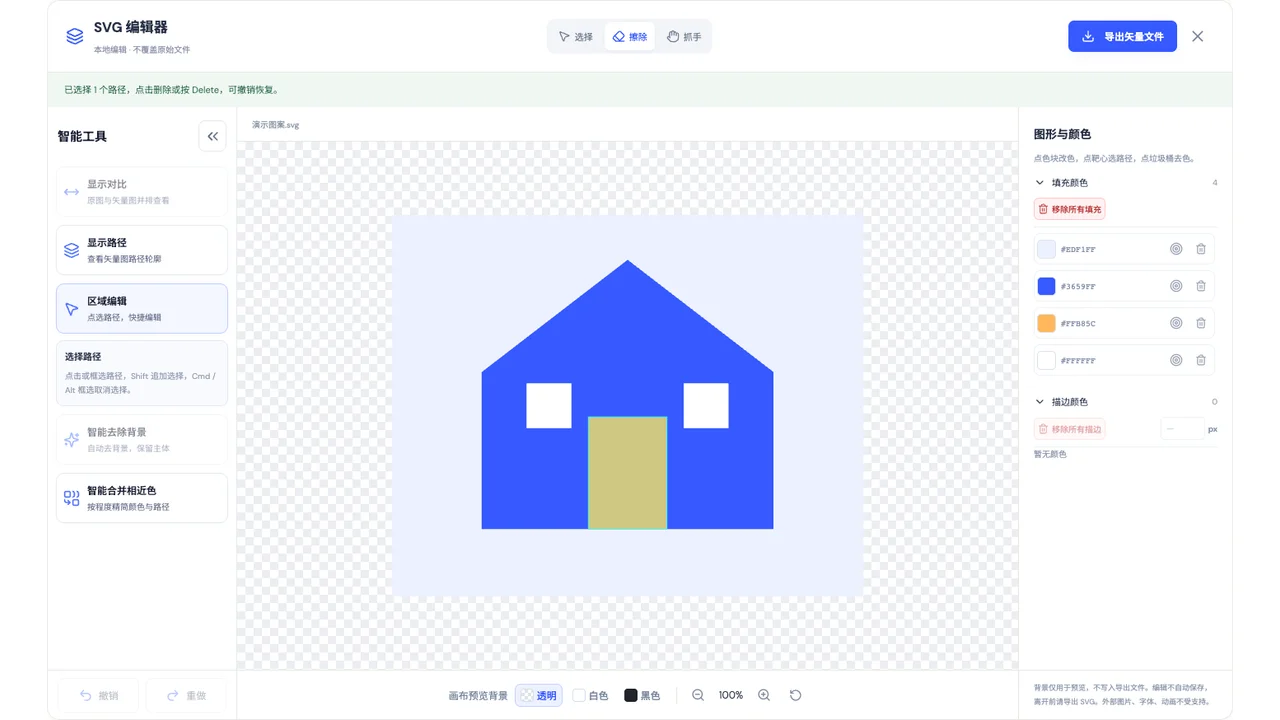
07 Move, zoom and canvas preview background
Select "Grappler" to drag the canvas, or hold down space to temporarily use the gripper. In the grip state, the scroll wheel zoom is centered on the mouse; the plus and minus buttons at the bottom can also adjust the ratio. "Canvas preview background" provides transparent checkerboard, white and black, which only affects viewing and will not delete the pattern background or change the exported content.
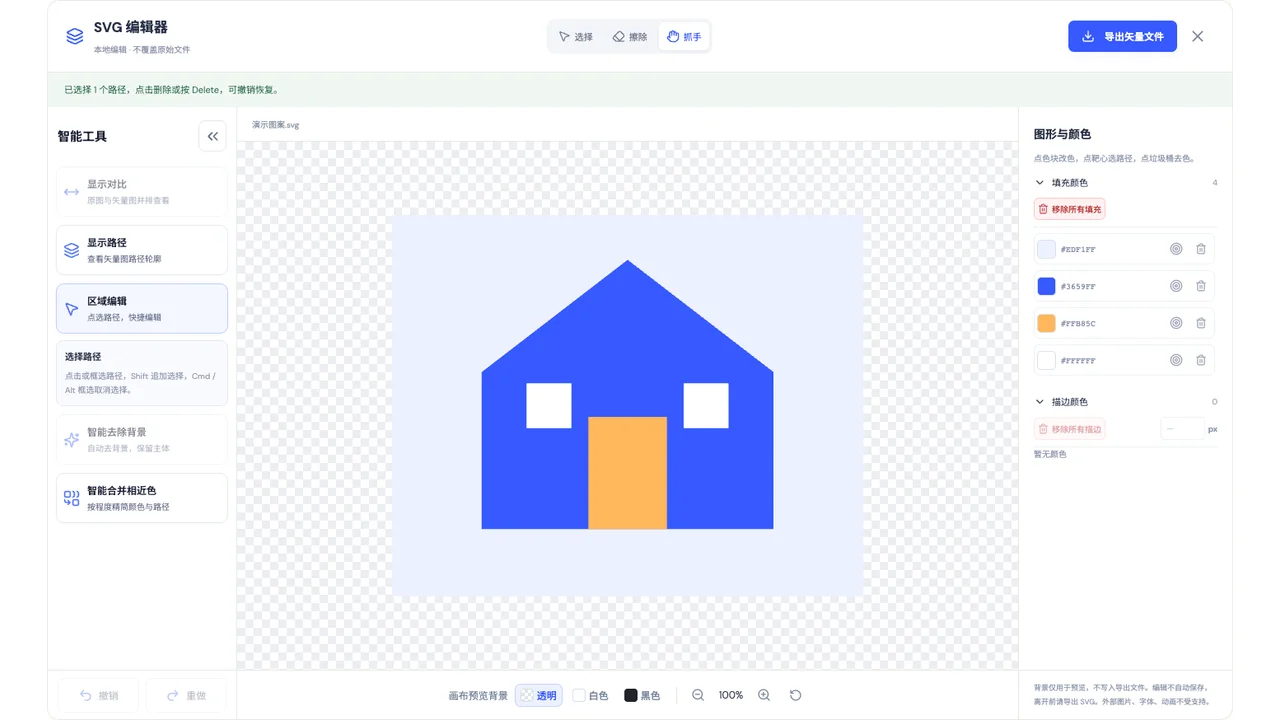
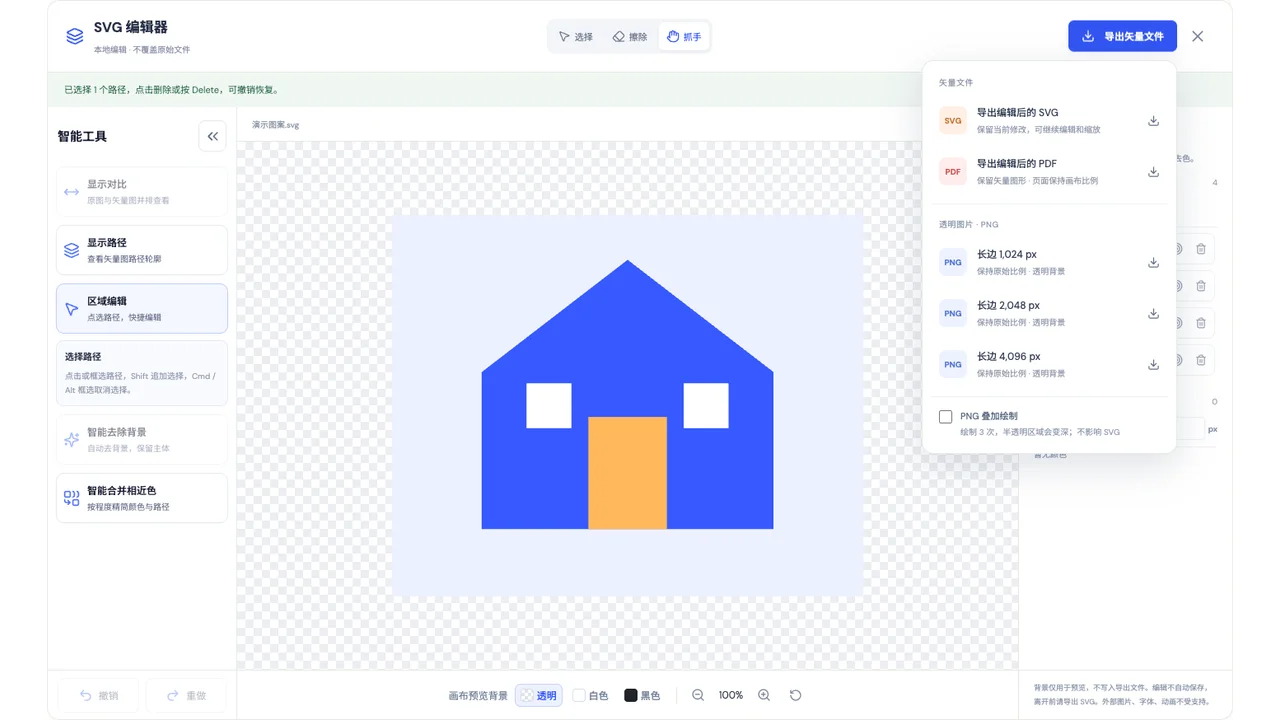
08 Export editing results
Click "Export Vector File" in the upper right corner and select SVG, PDF or PNG; PNG has optional long sides of 1024, 2048, and 4096 px. Edits will not be saved automatically, please export before leaving. The download of the task page does not include editing modifications, and the DXF does not include the edited content; the editor does not provide DXF export yet.
Chrome extension help
01 Install and open the Chrome extension
in Chrome App Store Install Vectra, click "Add to Chrome" and confirm. Supports Chrome 116 and above, installation is free; image conversion requires logging into the official website account and having a valid membership.
After installation, click the puzzle icon on the Chrome toolbar, find "Vectra Web Image to Vector" and pin it, then click the icon to open the sidebar. Log in to the official website account in "My Account", and the membership status is verified by the server.
The store version does not require turning on developer mode or manually loading the ZIP. When there is an internal beta version, export important results first and then switch to the store version; native galleries and task records with different extension IDs will not be automatically migrated.
02 Collection of pictures and domain name authorization
Right-click on the web image and select "Add to Vector Inspiration Gallery". When reading the image domain name for the first time, follow the prompts to authorize; only authorize the image domain name to be read. You can also drag local PNG, JPG, and WebP into the gallery, or click "Upload local images".
Supports images within 10 MB and is scaled according to the official website rules. A maximum of 30 images can be saved in the gallery, and priority is given to the latest collection. Collection will only put the picture into the local gallery and will not submit the conversion immediately.
When there is no right-click menu, please make sure you click on the image itself, refresh the web page and try again. Images affected by login, anti-hotlinking or custom menus can be downloaded and uploaded; the extension will not bypass website access restrictions.
03 Convert, Download and Edit
Select the picture in the gallery and click "Convert". After acceptance, you will enter the conversion task list. The official website and extension share account restrictions, and the same account can have up to 1 unfinished task. When the request status is unknown, follow the page prompts to query the original task to avoid repeated submissions.
The extension only displays the latest 20 tasks created by the native extension and does not synchronize the official website tasks. When finished, open Download Vector and select SVG, PDF, or an available DXF; old tasks without DXF will be grayed out. Please collect and download important files within 1 hour of completion.
Click the edit icon next to the task, adjust the path, color, and background in a new tab, and then export SVG, PDF, or PNG from the editor. Task Download with DXF retains the original conversion results without editorial modifications.
04 Update, storage and account issues
Store updates are managed by Chrome. Users of internal test installation packages should replace the original folder contents and then chrome://extensions Refresh the plugin and reopen the sidebar; the beta package is a standalone installation and does not require these steps for the store version.
Do not try to preserve the gallery by uninstalling and then installing. Uninstalling extensions, clearing extension data, or changing browsers may result in loss of the local gallery and task cache; important results should be exported first. Actively clearing the gallery will not automatically delete platform task records. Records in progress or with unconfirmed status are retained according to interface rules.
Please log in again if your login fails; if you cannot switch, check the membership status, existing tasks and service prompts. Do not send the mobile phone verification code, password and complete redemption code to others. If you need help, please passContact usProvide problem description and task number.
05 Internal test package installation instructions
When only using the existing internal test ZIP installation package: first completely unzip it to a fixed folder and open it chrome://extensions And turn on the developer mode, click "Load unpackaged extension", select to see directly manifest.json folder. Do not drag directly into the ZIP, and do not click "Pack Extension".
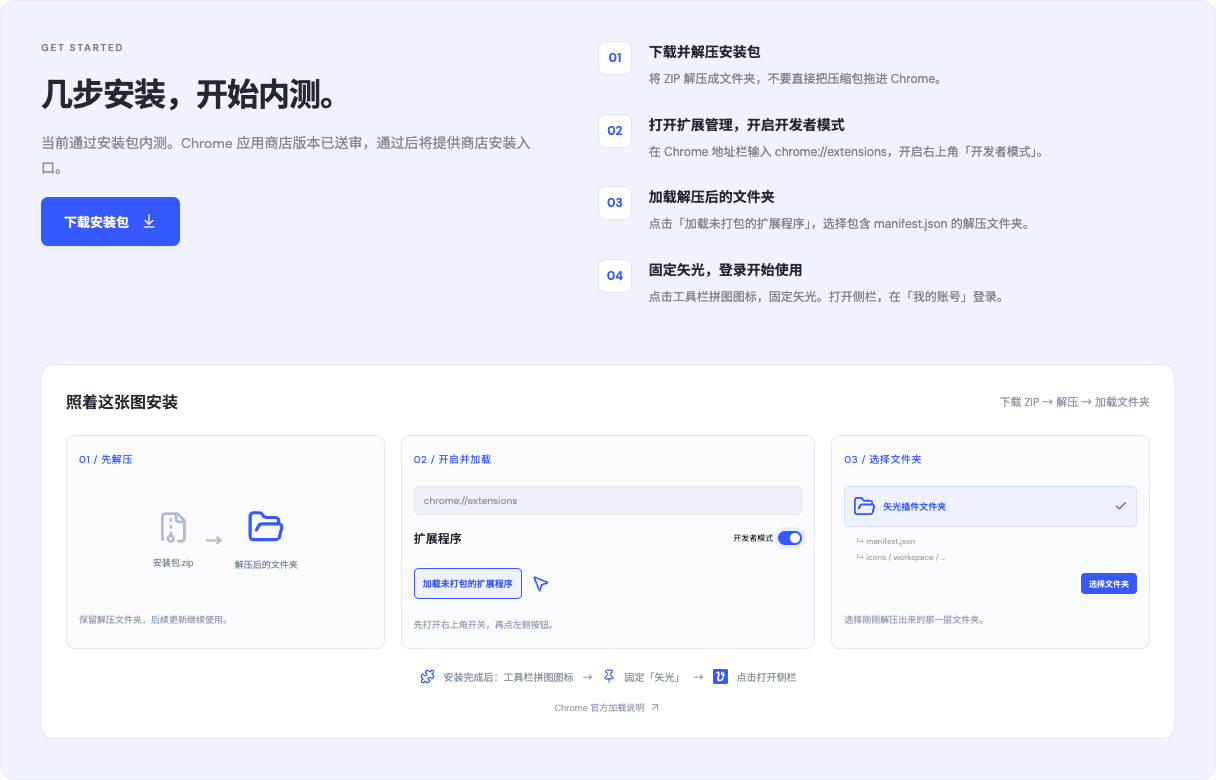
When the manifest cannot be read, check whether the correct decompression directory is selected. If the developer mode is disabled on a browser managed by the organization, it needs to be handled by the device administrator. Ordinary users are given priority to use the Chrome App Store entrance in this category to install the official version.
FAQ
How to convert PNG, JPG, WebP to SVG online?
Log in and confirm that the membership is valid.StudioUpload PNG, JPG or WebP up to 10 MB. Images are scaled proportionally to the 3 Mi pixel budget and the longest side limit of 4096 pixels, without enlarging small images. Preview and download the SVG when finished; changing the file suffix will not generate a vector path.
Clear logos, icons, line drawings and illustrations with clear color blocks are usually more suitable for vectorization. Photos, blurred text, gradients and complex textures may generate more paths, and the SVG is not necessarily smaller than the original image. Can be referenced PNG Guide、JPG Guideand WebP Guide。
What is the difference between SVG vector graphics and PNG and JPG?
Bitmap records images by pixels, and SVG can describe outlines and color blocks through paths, making it easier to zoom and edit. Vectorization is not a lossless restoration of the original and will not make up for lost details; text in the picture usually becomes a graphic path and will not automatically be restored to input font text.
How to prepare logo, line drawing and printing materials?
Use original images with complete subjects, clear edges, and clear contrast to avoid multiple compressions or chat screenshots. Check for small print, thin lines, internal holes and transparent edges after conversion. Please check size, color, line width and file format with the manufacturer before printing, printing, engraving or cutting.
Why can I download DXF for new tasks, but old tasks are grayed out?
DXF is a contour attachment generated separately by the conversion task. When the old task has no attachments, or the geometry data cannot be safely exported, the download button will be grayed out; SVG and PDF can still be used. The conversion can be re-uploaded if DXF is required, but complex or unusual geometry may still not be exported.
Current DXF uses straight lines, circular arcs, and elliptical arcs, and does not include splines; Bezier approximates straight lines with error limits. The default output is 96 px = 25.4 mm, and the actual physical size of the pattern cannot be determined based on this. Please check closure, repeating lines, and proportions in the target CAD or cutting software; DXF does not automatically generate centerlines or machining tool paths.
How to select a path or unselect part of it?
Select the "Select" tool and click or drag the frame to select. The path that completely falls within the frame will be selected. You can start frame selection from a blank space outside the file or within the canvas. Shift adds selection; Cmd or Alt selects a box to subtract the path within the box from the existing selection. Press Delete or click the delete button to delete the selected path. Misoperation can be undone.
What is the difference between erasing, deleting paths, and removing strokes?
Preview the target path when the erase tool is suspended. Click to only remove the fill and keep the stroke; deleting the path will remove the selected shape; removing the stroke will not delete the fill color. Deleting a certain document color will affect all areas of the same color. Before removing the background, you should check whether the main body also uses this color.
How to use intelligent background removal and merging similar colors?
Intelligent background removal generates a new version based on the original conversion result. It is suitable for tasks opened from the studio and supporting this function; subsequent editing needs to check the edges of the subject. Intelligent merging of similar colors allows you to adjust the degree, view an instant preview, and apply when satisfied. Both types of operations are undoable, please check the graphics and color changes before exporting.
Will zooming or switching the canvas preview background change the file?
In the grip state, the scroll wheel zoom is centered on the mouse position, and moving and zooming the canvas only affects viewing. Transparent, white, and black for "Canvas Preview Background" will not change the material fill or output background. If you need to actually remove the background, you should use the corresponding editing tools and export the results.
Why are the download results different from the files exported by the editor?
Task page downloads SVG, PDF and DXF correspond to the original conversion results and do not include editing modifications. After editing, you must export SVG, PDF or PNG from the editor; the current editor does not have a DXF export entry. The edited content will not be saved automatically. Please export it before closing the page.
How long are the conversion results saved? Can I still download after changing devices?
Please collect it within 1 hour after successful conversion. The website saves the latest 20 task files in the current browser where the results are received, and clears the server's temporary copies after saving them completely and confirming them; if the number exceeds the number, the oldest tasks will be eliminated. The extension saves the native extension tasks, and the official website and the extension do not share the task list.
After cleaning browser data, uninstalling extensions, or changing devices, cleaned server files may not be recovered. Please download important files and back them up yourself; the local cache is not a cross-device cloud disk. For account and order questions, please contactCustomer Serviceand provide the task or order number.
Detailed help by topic
Find help with uploads, queues, saving results, editing, exporting, accounts and the extension.
Browse vectorization and design knowledge →