Vectra Extension Chrome browser extension The official version is now online

Vectra web imagesConvert to vector

The Vectra extension allows the inspiration on the web page to become vector material easily.
Right-click to collect images from Pinterest, Petals and other web pages, log in, convert and download in the sidebar, and then open the SVG editor to continue creating.

Chrome App Store official version Chrome 116+ is free to install, conversion requires logging in and having a valid membership
Save web images with a right clickInspiration Gallery Grid PreviewView conversion tasks in the sidebarContinue editing SVG
MEET SHIGUANG

How to use Vectra to convert web images to vector images?

When you see a suitable picture, there is no need to interrupt browsing first. Right-click to collect it, and when you are ready to create, go to the sidebar of the browser to complete the image conversion to vector.

A Chrome image to vector extension for use with the official website

"Vectra web image to vector" is the full name of the extension, which is also often called Vectra extension, Vectra Chrome extension or Vectra vector extension. vectorizerai.cn is the supporting official website. This page provides function introduction, official version installation entrance and usage instructions.

Vectra connects web image collections, inspiration galleries, conversion tasks and SVG editing. When browsing Pinterest, Petals and other websites, you can keep useful references first; when you need to process local files, you can also directly drag them into the gallery.

A SMALL EXTENSION. A BETTER WORKFLOW.

Vectra vector extension allows inspiration to become material easily.

"Vectra web image to vector" is a Chrome extension used with vectorizerai.cn. It connects collection, image conversion to vector and editing, reducing the repeated operations of saving images, switching websites, and re-uploading.

Web picture right click to save
‹   ›   ↻
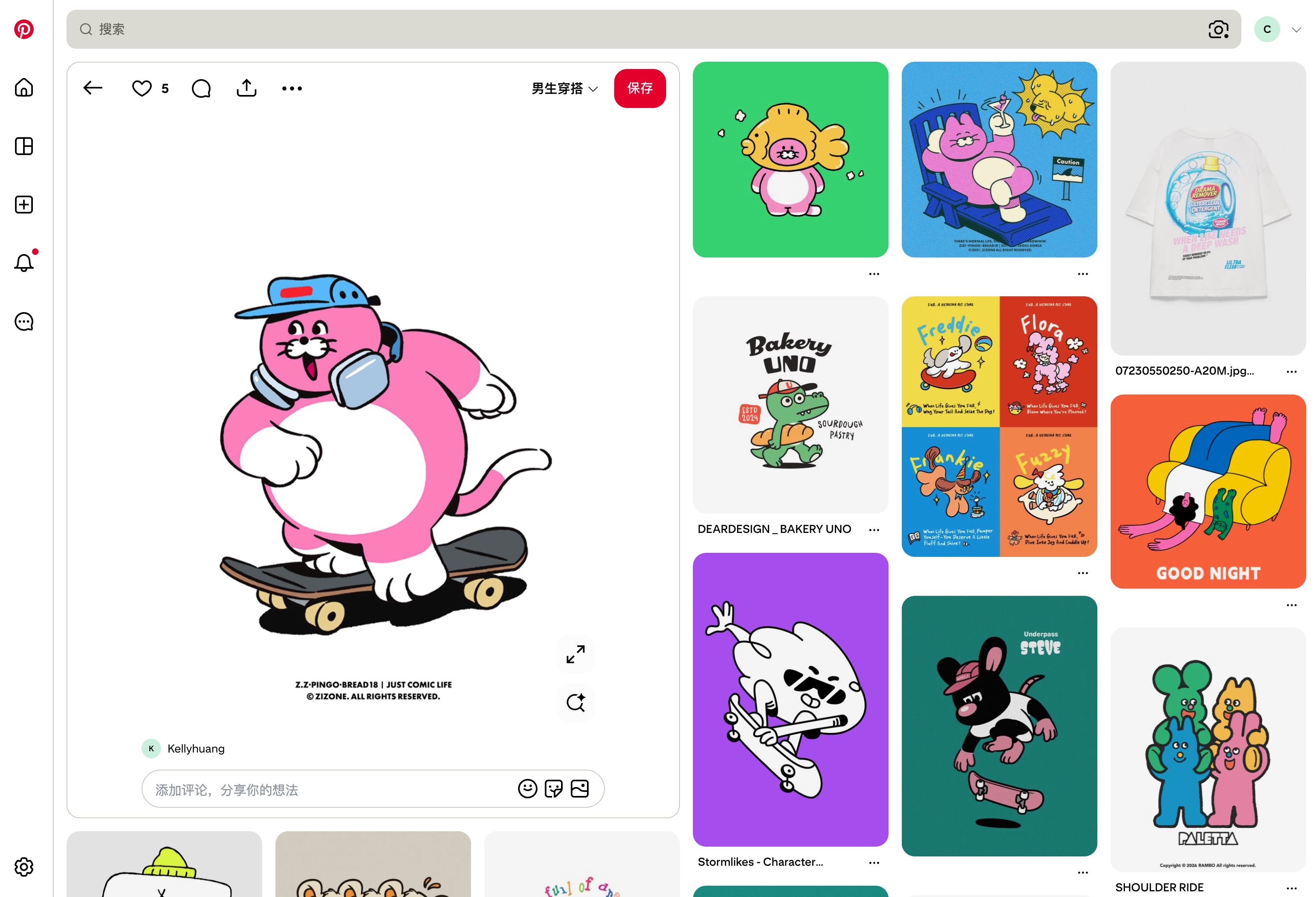
pinterest.com / Discover inspiration
Vectra extension pinned
Pinterest image details and inspiration gallery
Open image in new tabSave image as…Copy imageCopy image address
Check
Right-click the image
Interactive demonstration Click the blue menu to experience the collectionWeb page discovery → Right-click to favorite → Sidebar conversion
01 / Right-click to collect Inspiration Gallery

Found an image you like? Right-click to save it.

Browse pictures in web galleries such as Pinterest and Petals, right-click and select "Add to Vector Inspiration Gallery". The selected picture will appear in the extension gallery without leaving the current web page.

  • Only collect pictures you actively choose
  • Grid preview, latest inspiration ranked first
The same Pinterest image · Gallery → Conversion task
RECENT CONVERSIONS

Conversion tasks 1

The same image, from collection to vector.

Skateboard illustrations on Pinterest
Skateboard illustration.pngCompleted
Download SVG / PDF ↓
The last 20 tasks, converted one at a time
2Continue with “Skateboard illustration”, saved from PinterestConversion process diagram
02 / One-click conversion conversion task

Choose an image. Add a conversion task in one click.

Click "Convert" on the image in the inspiration gallery, and it will automatically enter the conversion task list after the task is accepted. The original image preview, progress, and download entrance are put together. Complete this one before moving on to the next one.

  • Convert one page at a time, the last 20 tasks
  • Download SVG / PDF when finished, or click the edit icon
SVG editor · Skateboard illustration.svg
SVG editor↶   ↷   100%Export file ↗
Skateboard illustrations on Pinterest
Shapes and colorsSkateboard illustration.svgScreen color
#F485CC
#FFFFFF
#13161B
#48B6F0
Export formatSVG / PDF / PNG
The same “Skateboard illustration” as in the previous two stepsEditing interface diagram
Continue editing the same pictureSVG / PDF / PNG Export
03 / Continue creating SVG editing

Conversion complete. Open the SVG editor directly.

Click the small edit icon next to the task to open the SVG editor consistent with the official website. Modify colors, remove graphics, undo adjustments, and export to SVG, PDF, or PNG to make the material better fit your design.

  • Colors and graphics can continue to be adjusted
  • Keep vector export to SVG, and also export to PNG

The above is an interactive illustration of the extension operation process. The actual interface and processing results are subject to the installed version.

MADE FOR YOUR IDEAS

From design reference to material that can continue to be edited.

Suitable for vectorization and material organization of icons, line drawings, color block illustrations and other pictures. After conversion, check the details based on the actual use and let the file enter the next step of design.

01 / Graphic Design

Logo, icon and illustration converted to SVG

Convert the authorized brand material, icon or color block illustration to a vector image, zoom in to check the outline, and then adjust the graphics and colors. SVG paths can continue to be scaled and edited when used in layouts of different sizes.

Learn about PNG to SVG →
02 / Demonstration and e-commerce

Organize elements for PPT and product visuals

When browsing the web, first save it for reference, and then select the required single image from the gallery to convert. Keep the SVG file after editing, or export it as a PNG and put it into presentations and product layouts to reduce the need to repeatedly save and find images.

Learn about JPG image vectorization →
03 / Handmade and pattern

Prepare cutting plotter and heat transfer to create patterns

Convert line drawings, decorative patterns and simple patterns to SVG, and continue to adjust color matching and unnecessary graphics. Please check closed paths, dimensions and small elements in the target software before using for cutting or printing.

View vectorization and design knowledge base →

Which pictures are more suitable for converting to vector?

Pictures with clear outlines, clear contrast, and simple color blocks are easier to check and edit. Blurred thumbnails, complex photos, and images with a lot of textures still need to be checked for details after conversion; vectorization cannot restore the information that has been lost in the original image. It is recommended to use clear original images and confirm the authorization to use the materials.

GET STARTED

Install the Vectra extension and start collecting inspiration.

The official version of Vectra Chrome extension has been launched in the Chrome App Store. You can install it by going to the store. Subsequent updates will be automatically managed by Chrome.

Go to Chrome App Store to install

Support Chrome 116+ and install for free
Users who have used the internal beta package, please export important results first; the native gallery and task records of the internal beta version will not be automatically migrated to the store version.

Chrome extension installation and usage help
  1. 01
    Open the Chrome App Store

    Click the install button to enter the store details page of the Vectra extension.

  2. 02
    Add to Chrome

    Click "Add to Chrome" and follow the browser prompts to confirm adding the extension.

  3. 03
    Fixed Vectra, open sidebar

    Click the puzzle icon on the toolbar, find Vectra and fix it, then click the extension icon to open the sidebar.

  4. 04
    Log in to your account and start using it

    Log in to the official website account in "My Account" and collect web page images; you can submit the conversion if you have a valid membership.

Start with the App StoreOpen Store → Add to Chrome → Open Sidebar
01 / Store installation
Vectra web image vectorizer

Click "Add to Chrome" in the Chrome App Store to confirm installation.

02 / Fixed icon
Pin to browser toolbar

Find Vectra in the puzzle menu and click on the pin to open the sidebar at any time.

03 / Start creating
Collection → Convert → Edit

Log in to the official website account, right-click to collect web images, and convert and edit SVG in the sidebar.

Check out Vectra in the Chrome App Store
YOUR FIRST SVG

How to use Vectra to convert web images to SVG?

Collect first, then convert. Both web images and local images can start from the same inspiration gallery.

  1. 01

    Save web images or upload local files

    Right-click on the image and select "Add to Vector Inspiration Gallery". You can also drag or click to upload PNG, JPG, and WebP. When collecting, the images are scaled to within 3 Mi pixels according to the official website rules, and the longest side is limited to 4096 pixels. The latest images are ranked first.

  2. 02

    Log in to your account and submit the sheet for conversion

    Log in to the Vectra official website account, confirm that you have a valid member, select the picture and click "Convert". After the task is accepted, it will automatically enter the conversion task list; the extension and the official website share account restrictions, and the same account can only perform one conversion task at a time.

  3. 03

    Download the vector image, or open the editor to continue adjusting

    View progress across the last 20 records, preview original images, and download SVG/PDF when complete. Click the edit icon next to a task to adjust colors and graphics, undo changes, and export to SVG, PDF, or PNG in a new tab. Please collect and download the conversion results within 1 hour after completion.

QUESTIONS & ANSWERS

About Vectra Chrome extension, you may also want to know

Installation, membership, picture reading and file saving, find the answers here before you start using it.

When converting a web page to a vector image, does it turn the entire web page into SVG?

Vectra processes a single PNG, JPG or WebP image in a web page, and does not convert the entire HTML web page, layout or interaction into SVG. First right-click on the image you have permission to use and add it to your collection, then submit for vectorization in the sidebar; if you just need to take a full-page screenshot or convert a webpage to PDF, please use the corresponding browser function.

What is the difference between converting web images to SVG and saving them as SVG?

If the web page provides itself as SVG, you can save the original file after obtaining permission to use it without tracing it again. PNG, JPG, and WebP are bitmaps. Simply modifying the extension will not result in a vector path; Vectra generates a scalable and editable path through image vectorization. After conversion, you still need to check the outline, text, and color.

Are Vectra, Vectra extension and Vectra vector extension the same tool?

Yes, these names on this page all refer to "Vectra web image to vector". This is a Chrome browser extension used with vectorizerai.cn. The install button on this page links to the official version of the Chrome App Store details page, and you can check the full name before installation.

How to install Vectra Chrome extension?

Open the Chrome App Store from this page, click "Add to Chrome" and confirm. After installation, find Vectra in the puzzle menu of the toolbar, click the push pin to fix it, and then open the extension sidebar. Supports Chrome 116 and above, and the store version is automatically managed and updated by Chrome.

Can I convert the image directly to vector by right-clicking it?

Right-click and select "Add to Vector Inspiration Gallery" to save the image first. After logging in, select a single image in the sidebar and click "Convert". After the task is accepted, you will enter the conversion task list. You can view the last 20 records, preview original images, and download SVG or PDF.

Is it free to install Vectra extension? Does conversion require membership?

Extension installation is free, and membership is not included in the installation. Image conversion requires logging in to a Vectra account and having a valid membership. The specific packages and available purchase methods are subject to the official membership page. The extension shares account restrictions with the official website, and the same account can only perform one conversion task at a time.

Does PNG, JPG, WebP and local images support?

Supports PNG, JPG, and WebP within 10 MB. In addition to right-clicking on a webpage to add it to favorites, you can also drag in local images or click to upload them. When collecting, it is scaled to within 3 Mi pixels according to the official website rules, and the longest side is limited to 4096 pixels. The gallery is displayed first with the latest collection, and it supports removing collections and clearing the gallery.

Why can’t I save some pictures on Pinterest and Flower Petals?

External image domain names are authorized on demand, and some anti-hotlink or protected images may not be read. Please confirm that you have allowed access to the corresponding image domain name; if you have the right to download the image, you can save it locally and then drag it into the gallery.

What formats can be edited and exported after the conversion is completed?

The conversion results support multiple vector formats such as SVG and PDF, and can be downloaded according to usage. Click the edit icon next to the task, and the SVG editor will open in a new tab. You can adjust graphics and colors, undo modifications, and then export to SVG, PDF, or PNG; PNG is a bitmap format. When using other design or cutting software, please confirm its SVG import support and check paths and dimensions.

Does Vectra scan full page images or collect browsing history?

Only reads the pictures you actively select or drag in, does not scan the entire page, and does not collect the complete browsing history. External image domain names are authorized on demand; only after clicking "Convert", the image is uploaded to vectorizerai.cn and processed by the platform and third-party conversion services.

Can the gallery be synchronized across devices? How long will the conversion results be saved?

The native gallery and task records will not be automatically synchronized across devices. Please receive and download the conversion results within 1 hour after completion; the editing results need to be exported separately, and it is recommended to save them locally in time. Uninstalling a extension will clear the local extension records.

How to migrate to the official version of the store after using the internal test package?

Export the important results first, and then enter the Chrome App Store to install the official version through this page. The native gallery and task records of the internal beta version will not be automatically migrated to the store version. Please confirm that the required files have been saved before uninstalling the internal beta version.

Next time you find a good picture, give it to Vectra for collection.

Install "Vectra Web Image to Vector", start from a picture, and connect inspiration, SVG and next creation.

Install Vectra Chrome extension