Convert PNG, JPG or WebP to SVG, PDF or DXF. Preview the result and edit SVG paths and colors.
Or drop a file here. One task at a time.
PNGJPGWEBPUp to 10 MB per image
Private file access Real SVG paths
See every detailPNG → SVG
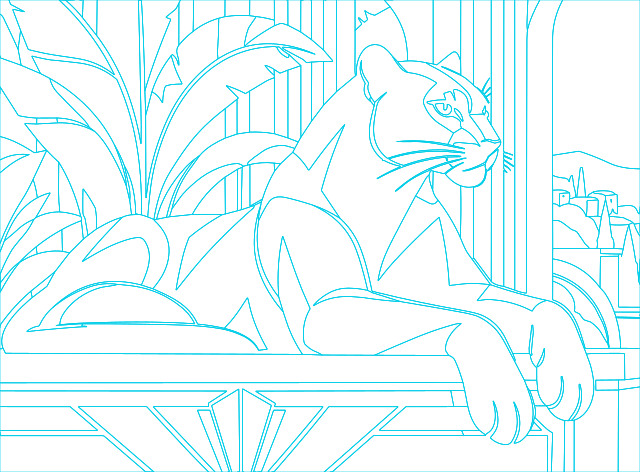
seaside-panther.png 640 × 472
Original PNG · Click to enlarge
Click on the example to enlarge the vector details.After clicking, the original PNG image will be enlarged to 200%; the SVG vector image and path will be displayed at the same proportion in the perspective glass. You can press and hold on the touch screen to drag. Public sample materials are not the real-time conversion results of this site.
Ready for your next project
Brand logos ✧ Illustrations ✧ Apparel prints ✧ Large format printing ✧ Craft projects
Comparison of image conversion to SVG vectorization effects
Automatically demonstrate changes in details, and move the mouse or touch and slide for comparison after the end. The actual conversion effect depends on the original image.
FROM IMAGE TO CREATION
Customer example
Start with an image and turn it into an asset you can keep working with.
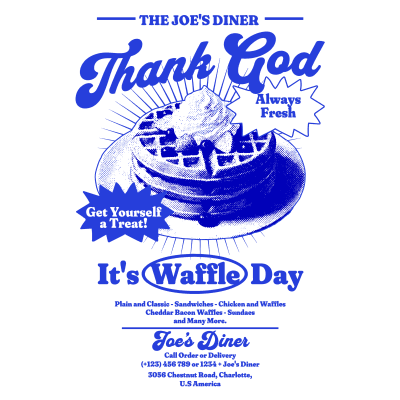
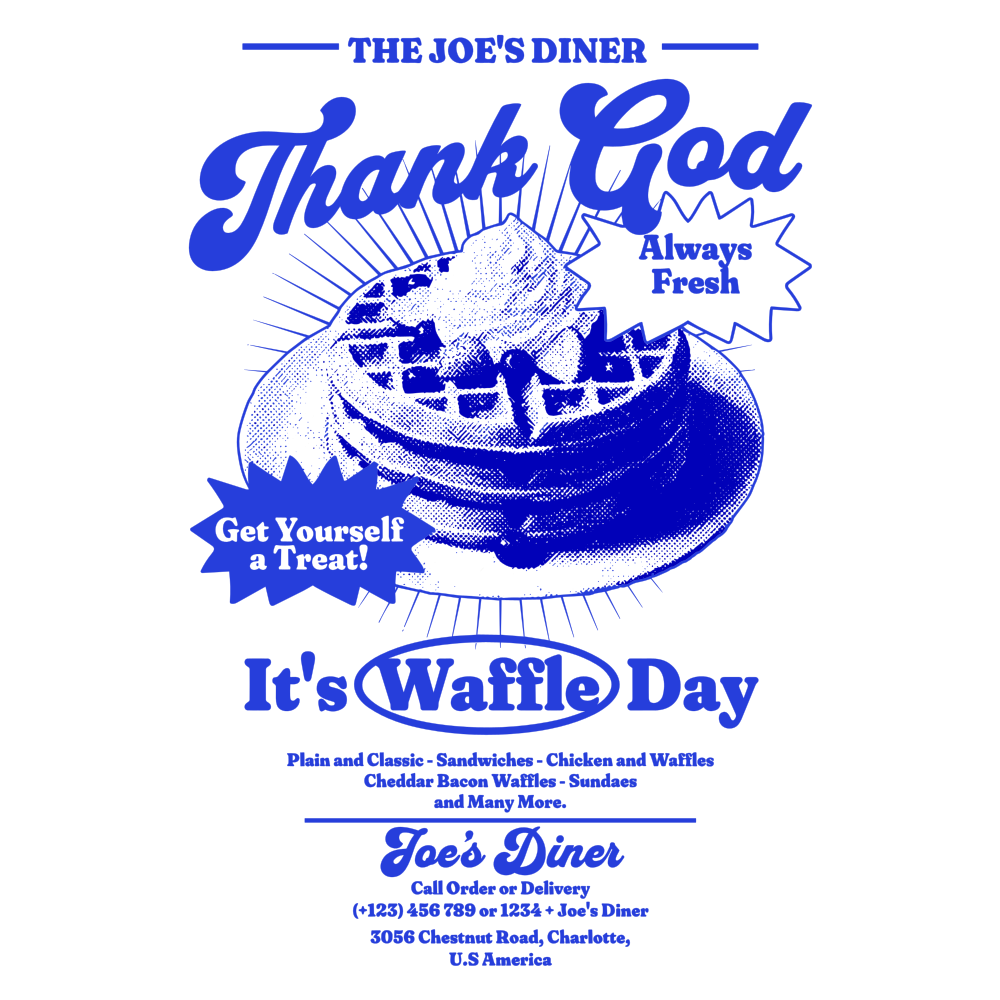
Compare the original image and the SVG to check the outline of the text, the edges of the color blocks and the internal white space. Organize the patterns into vector materials for easy color adjustment, size adjustment, and subsequent typesetting.
Before · Bitmap
After · SVG vector
PNG bitmaps are displayed at the same size as SVG vector images.
Check outlines and negative spaceContinue adjusting colorsExport for further design
LESS WORK. MORE CREATION.
Vectorize in three steps
Leave the paths to us. Make more time for creating.
01
Add your image
Upload a PNG, JPG or WebP. Start with a logo, lettering or illustration.
02
Watch it take shape
Lines and colors are traced automatically. Follow your task in the queue at any time.
03
Download and create
Preview the result and download an SVG or PDF for your next project.
Vectra web image vectorizer
Vectra for Chrome See an image. Make it a vector.
Bring vectorization into your browser. Save images from Pinterest, Huaban and other sites, convert and download in the Vectra sidebar, then keep creating in the SVG editor.
Save web images with a right click, or drop local files
Manage your gallery and tasks in the sidebar; download SVG / PDF
Edit shapes and colors, then export SVG, PDF or PNG
SVG output · Up to 2 concurrent conversions per account · Queued when busy API balance and website membership are separate. See the API overview and documentation for prices and limits.
Make conversion part of your workflowAPI
POST/openapi/v1/tasks
Your image collection
PNG / JPG / WebP files or image URLs
Create tasks and check status asynchronously
Processing follows account concurrency and queue rules
Download SVG to your business system
Archive assets automatically, then design and deliver
For asset libraries, e-commerce graphics and design tool integration
YOUR CREATIVE PASS
For a flash of inspiration or a lasting practice.
Trial: 1 day. Weekly: 7 days. Monthly: 30 days. Quarterly: 90 days. Time starts when redeemed.
Use complete images with sharp edges and distinct colors. Converted lettering becomes paths, not editable font text.
02
Photos, gradients and complex textures
These may produce many paths, so SVG files may be larger. Confirm format, color and line width requirements before printing.
03
Preview, check, edit and export
Check small text, fine lines and negative space, then export from the editor. SVG can also contain bitmaps; inspect actual paths to confirm editability.Read the SVG specification ↗
CHOOSE YOUR VECTOR FORMAT
SVG, PDF or DXF: which should you choose?
Upload PNG, JPG or WebP and choose an output for your next step. The editor can also export PNG, a bitmap without editable vector paths.
SVG
Web icons, logos and further editing
Preserves vector paths and colors for scaling and further editing. Traced text becomes outlines, not editable font text.
Answers about uploads, memberships, editing and saving files.
How is SVG different from a regular image?
SVG describes graphics with paths that stay sharp when enlarged. Edit them in design software that supports SVG.
Do I need a membership first?
You can register and browse for free. Conversion requires an active membership. Time starts on redemption; renewals extend your current expiry. Check the membership page for available plans and purchase methods.
What image sizes are supported?
PNG, JPG and WebP files up to 10 MB are supported. Images are proportionally resized to a 3 Mi pixel budget and a maximum edge of 4096 pixels. Small images are not enlarged; transparency is preserved. Each account can have one unfinished task. Wait times depend on the queue.
Can I edit colors and backgrounds?
Open Edit SVG to find shapes by color, remove colors or remove strokes. Removing a background color also removes every region with that color. Check your subject carefully. Task downloads contain the original SVG; export edited files from the editor before leaving.
How long are results kept?
Collect results within 1 hour of completion. Files for your latest 20 tasks are stored in the browser that collects them. Server copies are removed once browser storage is complete. Clearing browser data or switching devices cannot recover removed files. Download important work as a backup.